Setup #
Some fixes and required modifications can be automated using in-game Entity Tools.
Changes made with Entity Tools need to be Exported To Lumper and then saved in the .bsp.
- Open Entity Tools by typing
devui_show entitytoolsin console - Go through each section of the Entity Tools and follow to guide to apply correct fixes
You can change the font size of Entity Tools by using devui_font_scale command in console.
When making these changes it’s perfectly fine to Export them only once, when you are done with everything, however there is no downside to gradually saving your progress.
Entity Tools #
Teleport Velocity Mode #
Teleports in Momentum Mod retain player speed by default.
This needs to be sometimes changed as explained in scenarios below.
Go through each teleport destination by clicking Teleport To Destination and apply relevant fixes.
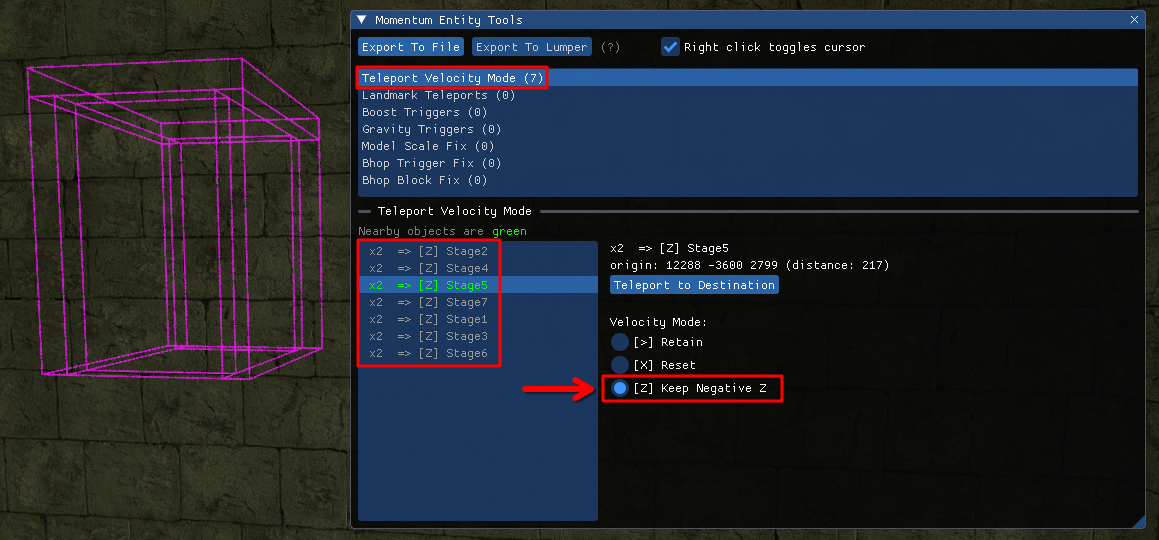
Keep Negative Z #
This mode is generally only relevant to Surf.
Apply it to all teleports that are meant to completely stop player’s horizontal momentum.
User_drawclipbrushes 1in console or/clipsin chat to enable clip brushes.
If the teleport destination is inside of a clip box, you should apply this fix
When the player hits a teleport with this mode selected:
- They lose all control until they land on the ground
- Zones are not activated until the player hits the ground
Reset #
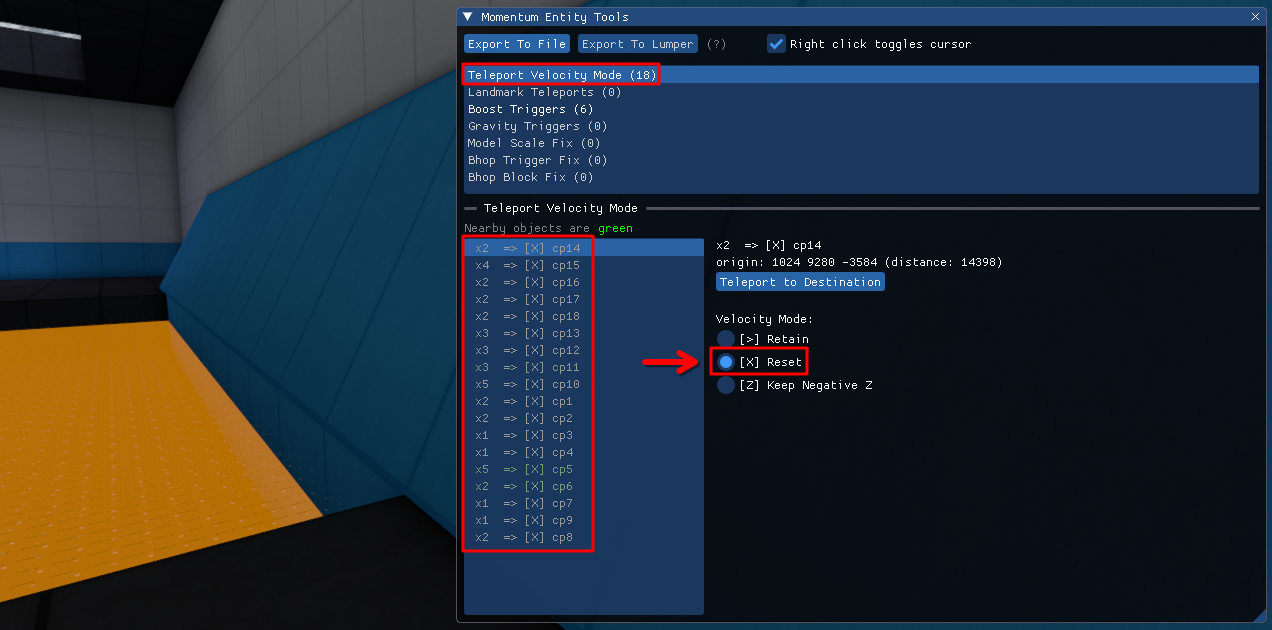
Apply this mode to all teleports that are meant to completely reset player’s momentum.
Examples include:
- Rocket Jump and Sticky Jump teleports that launch the player off the platform when hit with an upwards angle
- Conc and Ahop fail teleports
Boost Triggers #
Both trigger_push and trigger_multiple can be used for boosting the player.
They need to be converted depending on how the boost is applied.
Teleport to every trigger and apply a modification if it fits into one of the following scenarios.
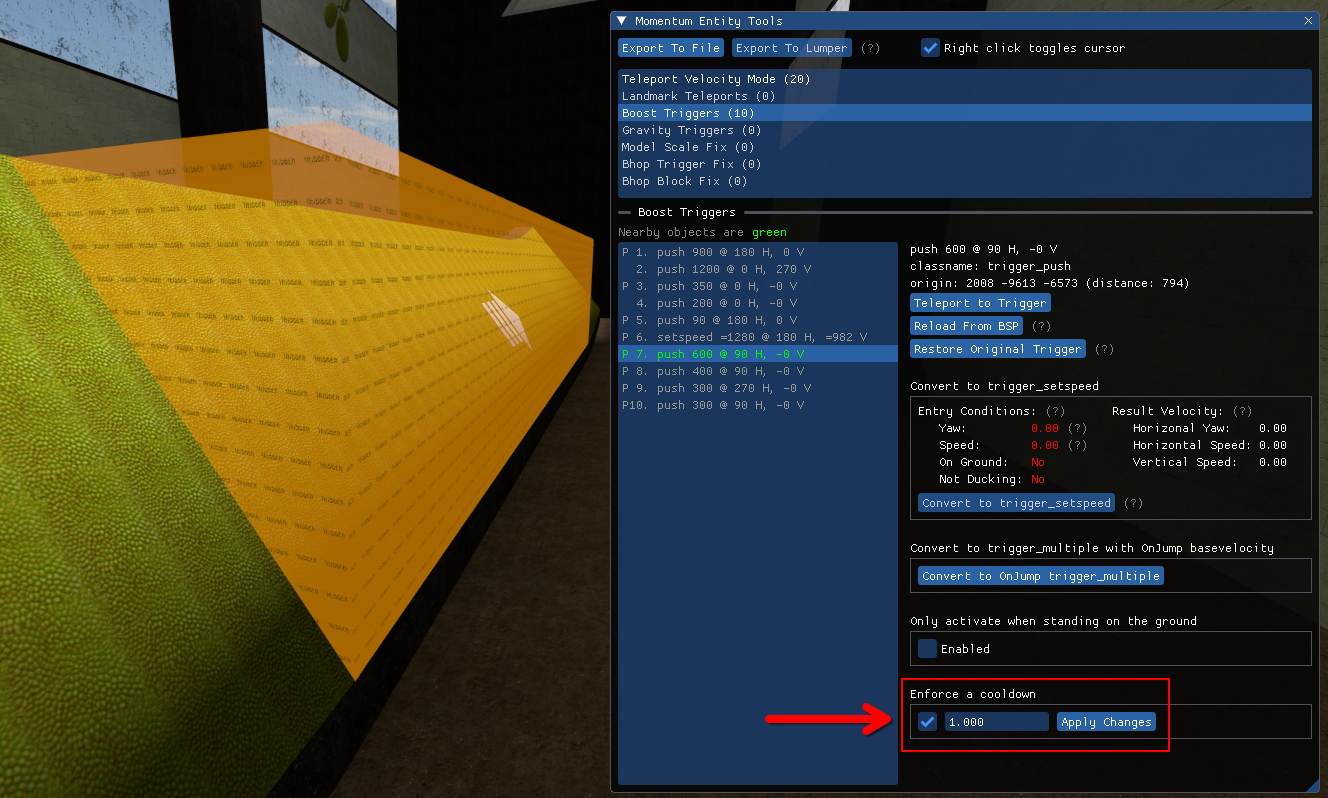
Scenario 1: The boost is applied in the air / while surfing #
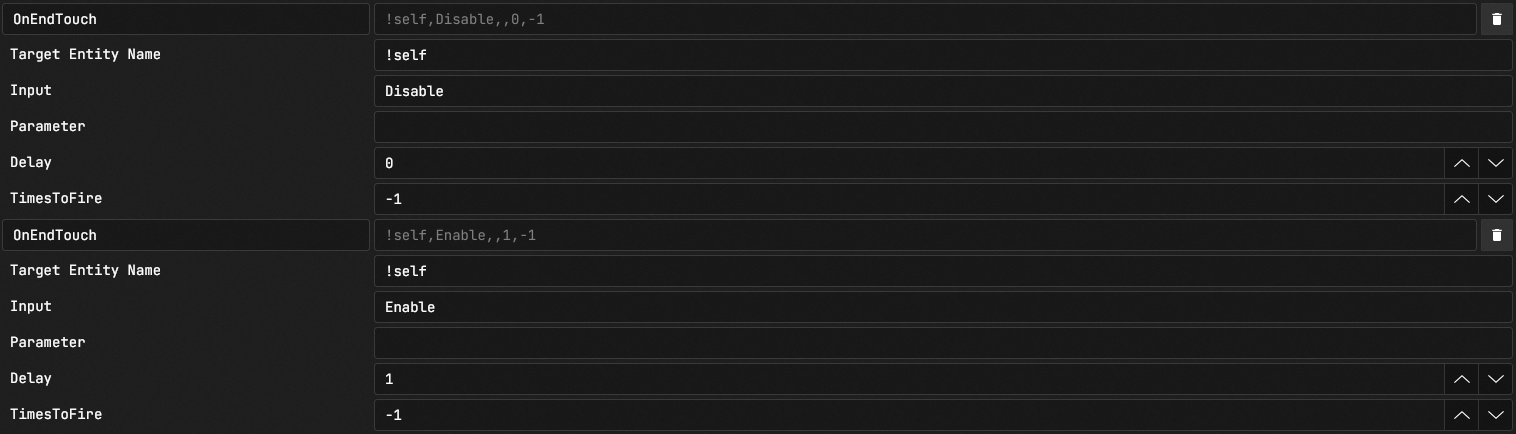
- Check the cooldown box and type 1 in the textbox
- Click Apply Changes
First one disables it immediately after a player exits it’s volume.
Second one re-enables it after chosen duration.
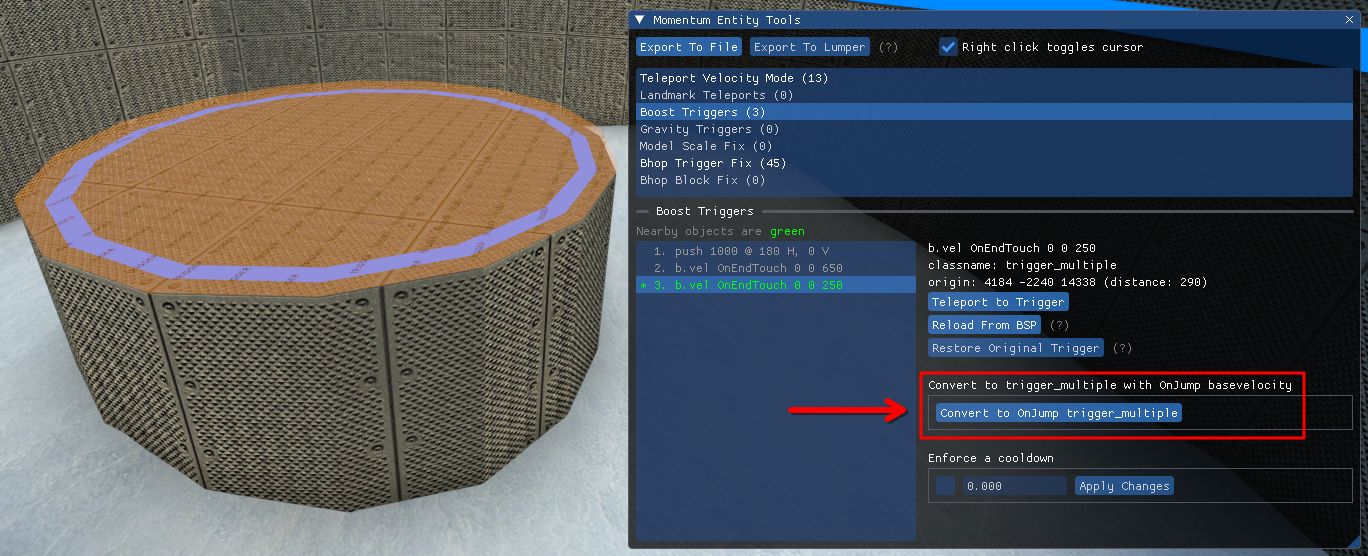
Scenario 2: The boost is applied by jumping on it #
- Click Convert to OnJump trigger_multiple
Scenario 3: The boost is applied by walking into it #
- Fail the map/stage and don’t move your mouse so you look directly at the trigger
- You can also set your angle by using
setang X Y Zcommand in console - If setting the angle manually use multiples of 90 such as
setang 0 180 0orsetang 0 90 0to orient yourself properly
- You can also set your angle by using
- Walk into the trigger by pressing W only
- The game will automatically get all relevant information after using the trigger in this way
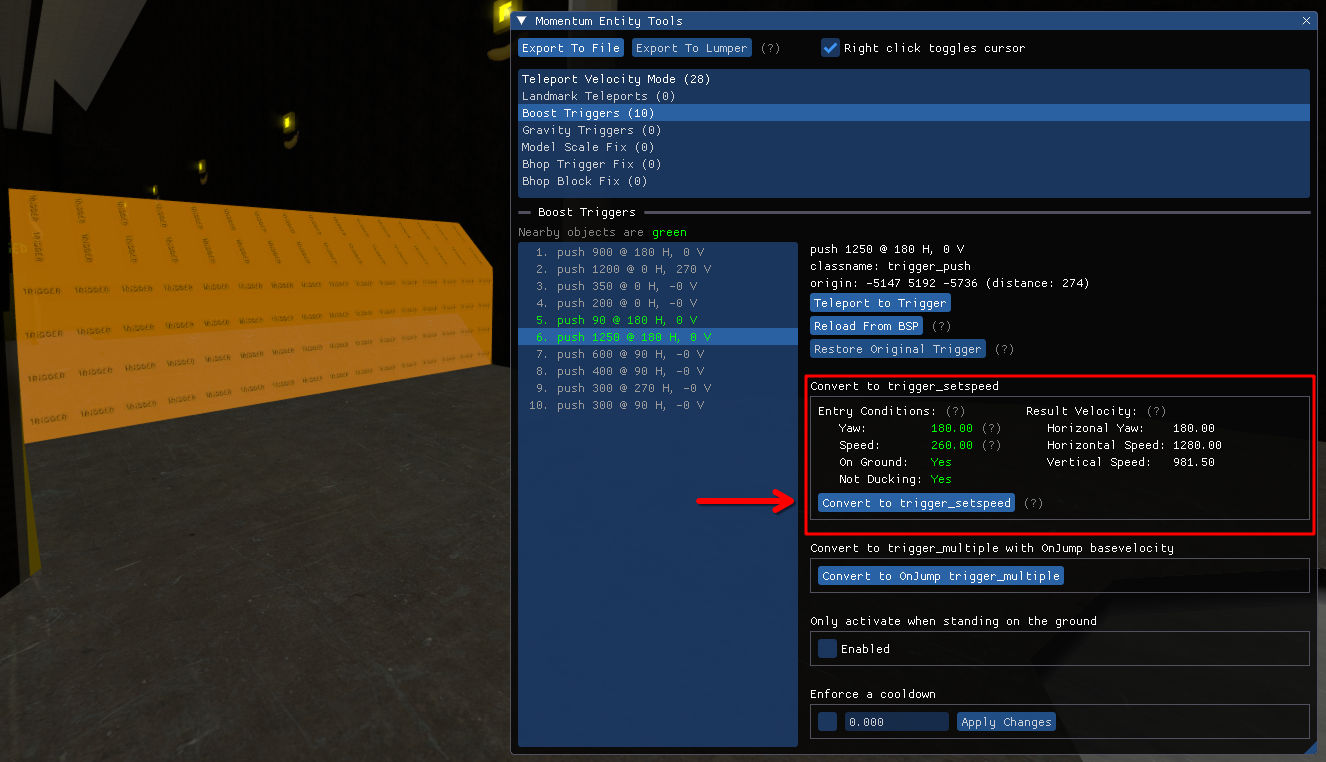
- Click Convert to Set Speed
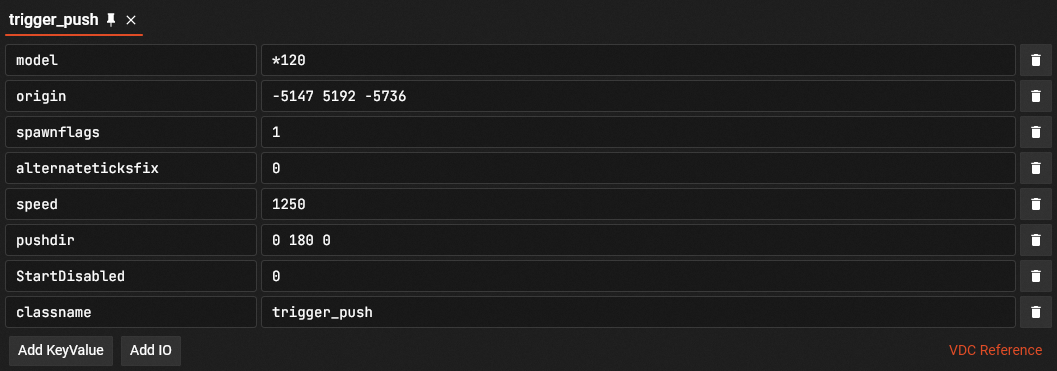
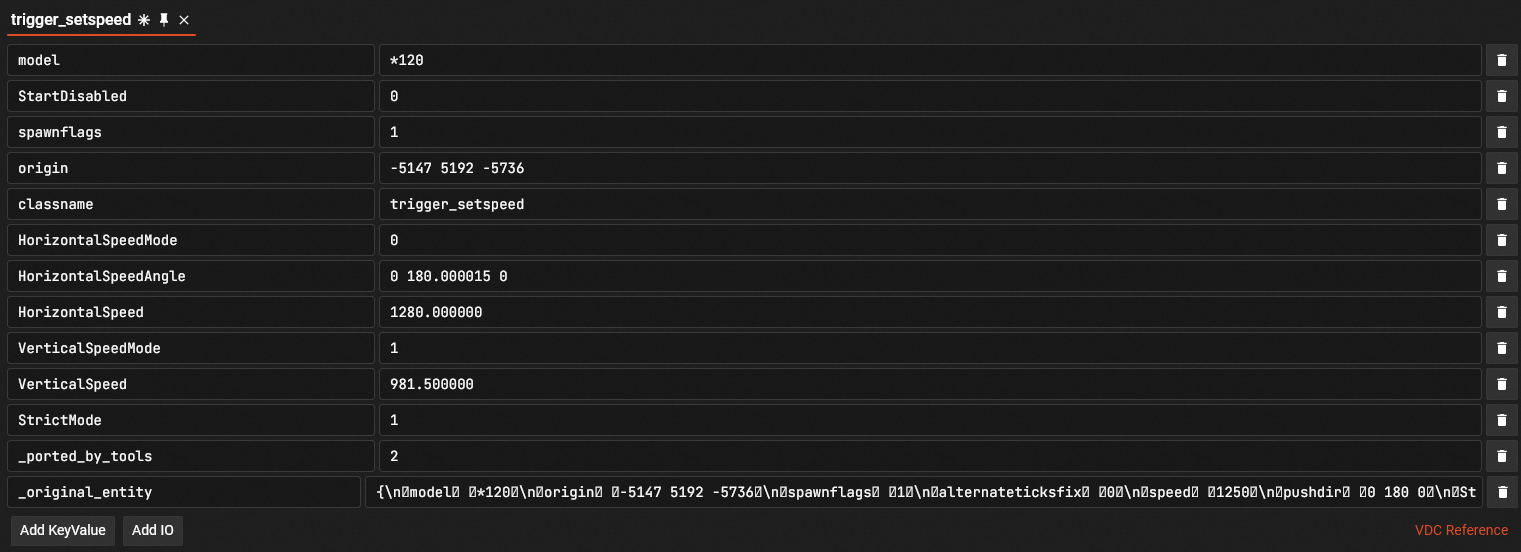
Example of the trigger conversion on surf_fruits:
Scenario 4: The boost is applied while walking / standing on the ground #
- If the ground is:
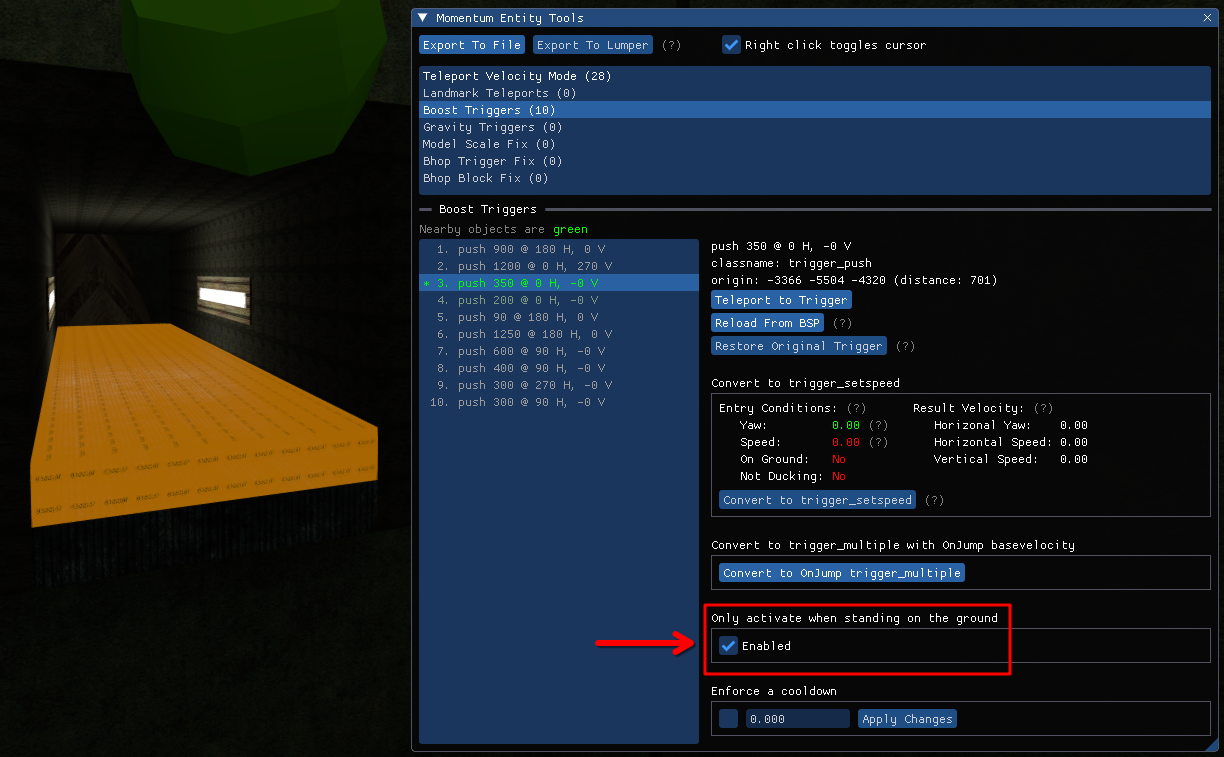
- completely smooth ( no ramps or bumps ), check Only activate when standing on the ground
- not smooth ( is uneven or has ramps ), add a cooldown to it with the steps above
Gravity Triggers #
Sometimes trigger_gravity is meant to apply permanent gravity changes to the player.
Gravity triggers like that usually come in pairs, one to modify the gravity, one to revert it.
Make sure you modify all relevant triggers when applying this fix.
Do NOT apply this fix if the trigger is meant to modify gravity only when a player is inside of it’s volume.
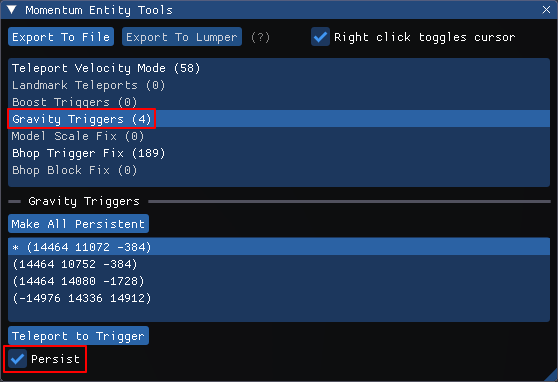
- Go to the Gravity Triggers section.
- Identify triggers that are meant to modify gravity permantently and check persist for them.
Model Scale Fix #
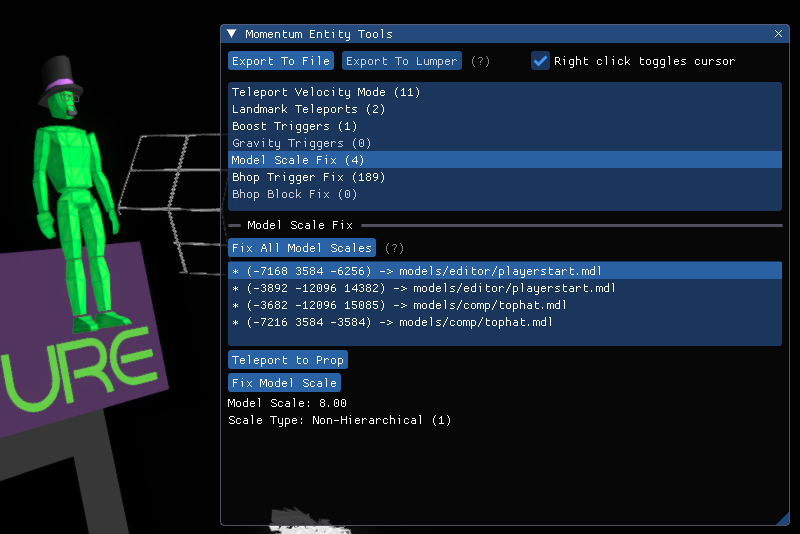
Maps compiled on an old version of source engine can have models that are too small.
- Open entity tools by typing
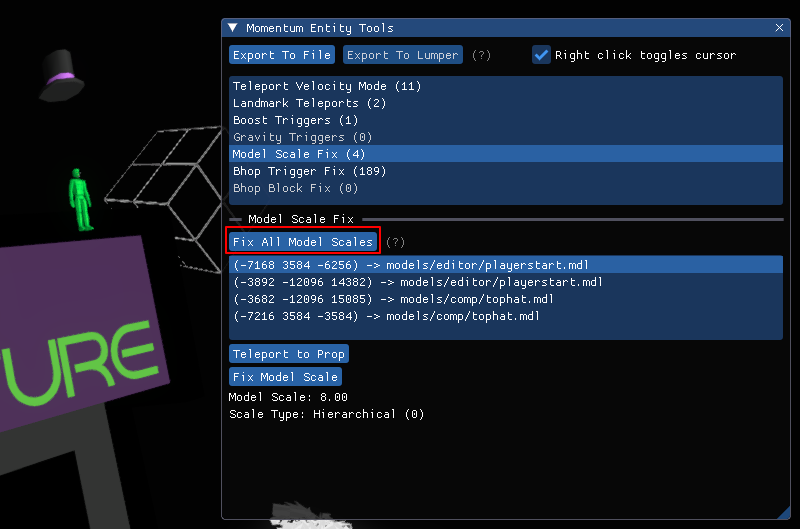
devui_show entitytoolsin console - Open the Model Scale Fix Section
- Teleport to props to see if they are the correct size
- Click Fix All Model Scales
Either all models need this fix, or none of them do.
There are no known cases of models having to be fixed individually.
Bhop Trigger Fix #
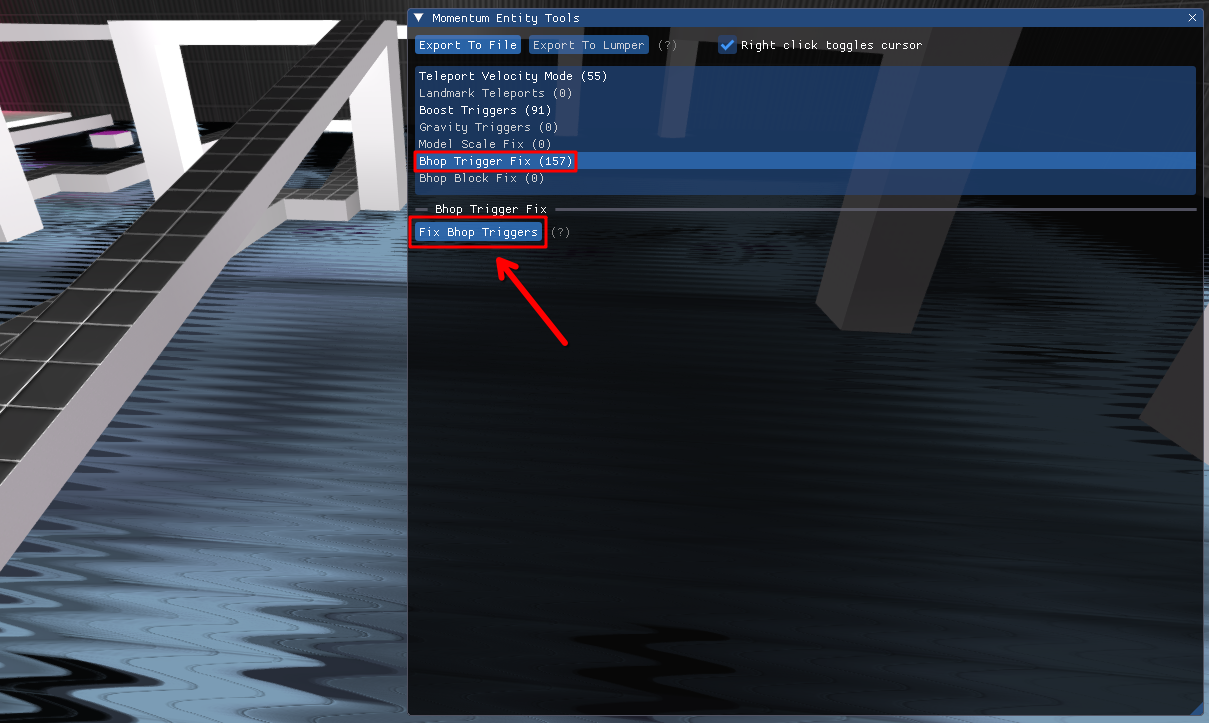
Some maps force the player to constantly jump to not get teleported.
This can cause issues when rapidly jumping/sliding up slopes or jumping up a ledge when the triggers are sticking out.
If this option is available in the Entity Tools, you should always use it.
Maps forcing players to constantly bhop do so by using filter_activator_name and applying / removing it from the player after a delay using OnTrigger outputs.
Entity Tools add filter_activator_context to the bsp with keyvalues:
Negated: 1
ResponseContext: _mom_leftground:*
These 2 filters are then combined into a filter_multi.
All trigger_teleport using the original filter are modified to use the new filter_multi.
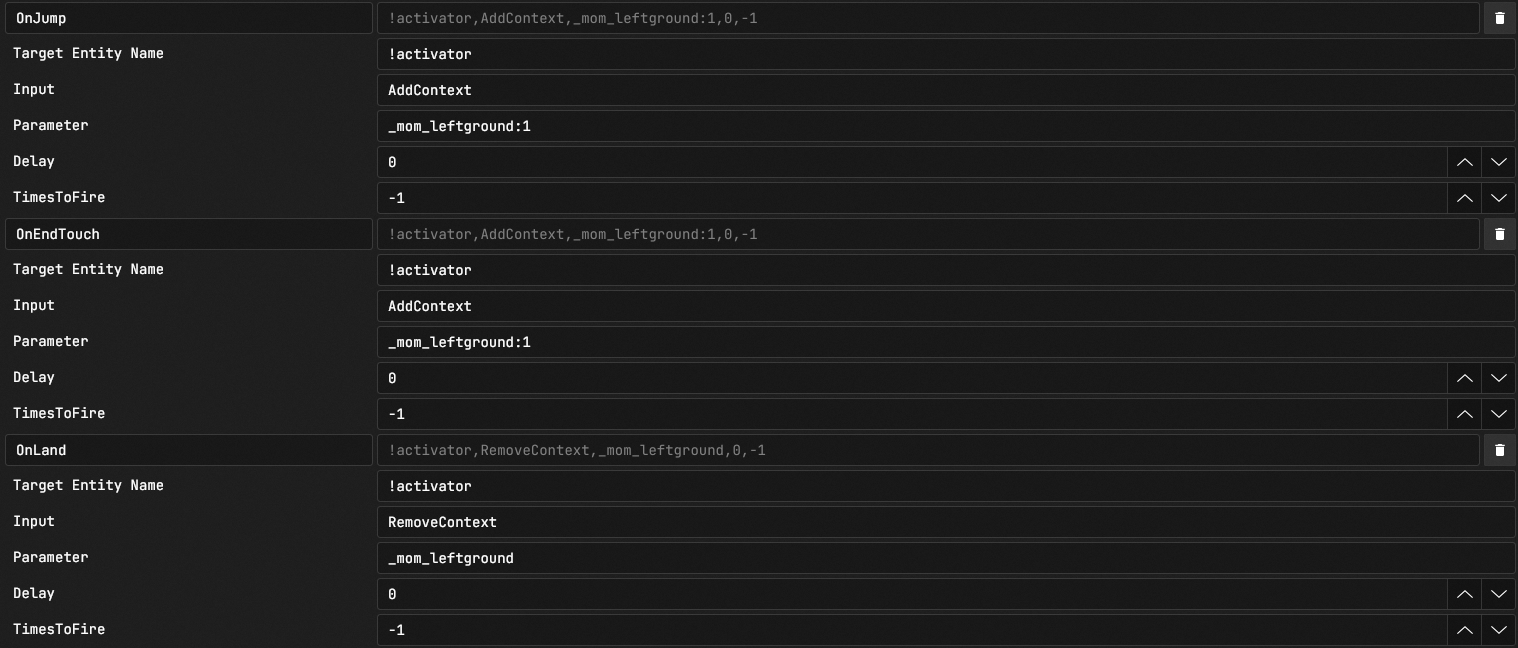
All trigger_multiple originally applying the targetname to the player have their outputs modified:
- Original OnTrigger outputs are converted to OnLand
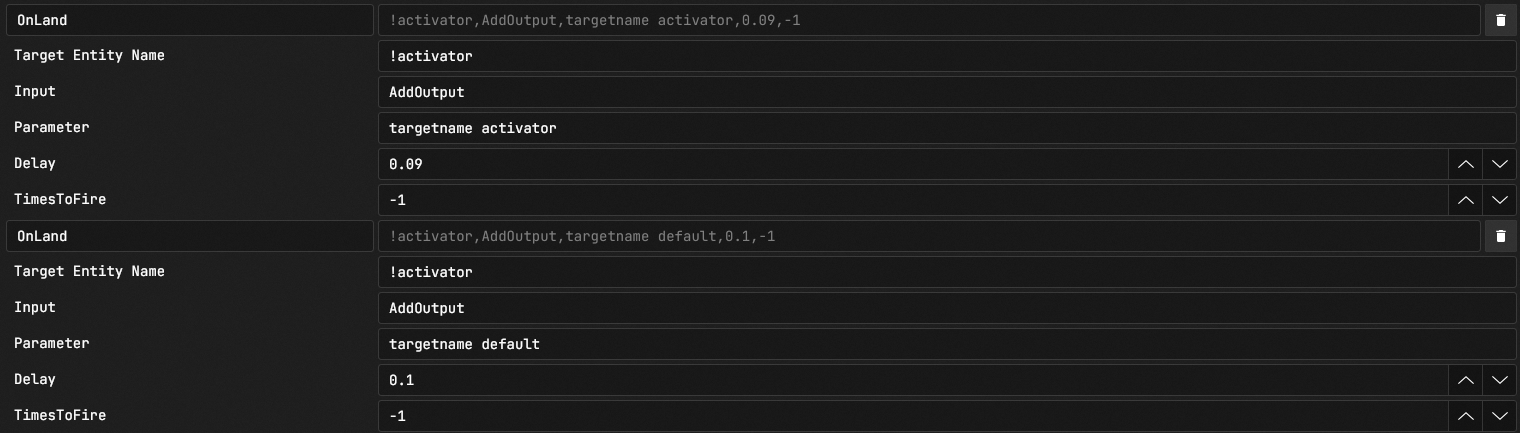
- New outputs are added to fix improrer trigger activation
Bhop Block Fix #
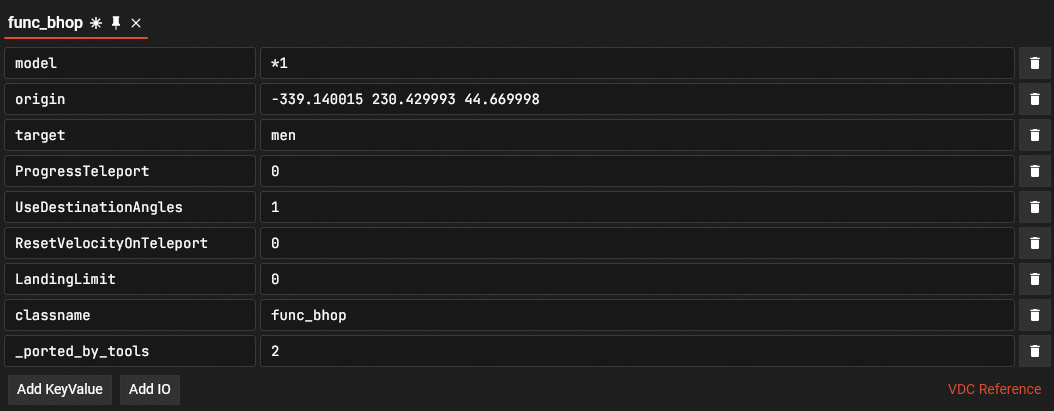
Some old bhop maps use func_button or func_door for bhop platform. These should be converted to func_bhop.
If this option is available in the Entity Tools, you should always use it.
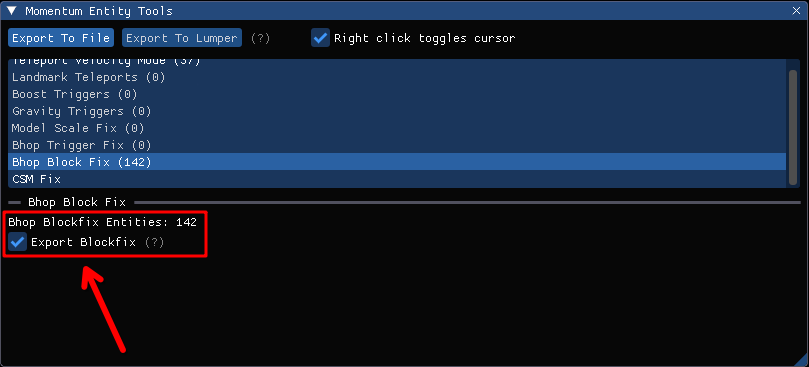
Checkbox for this fix is automatically ticked.
That does not mean the fix has been applied, you still need to Export It To Lumper.
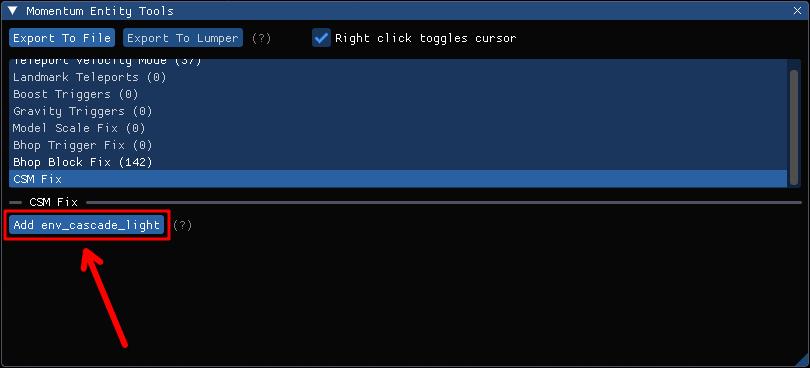
CSM Fix #
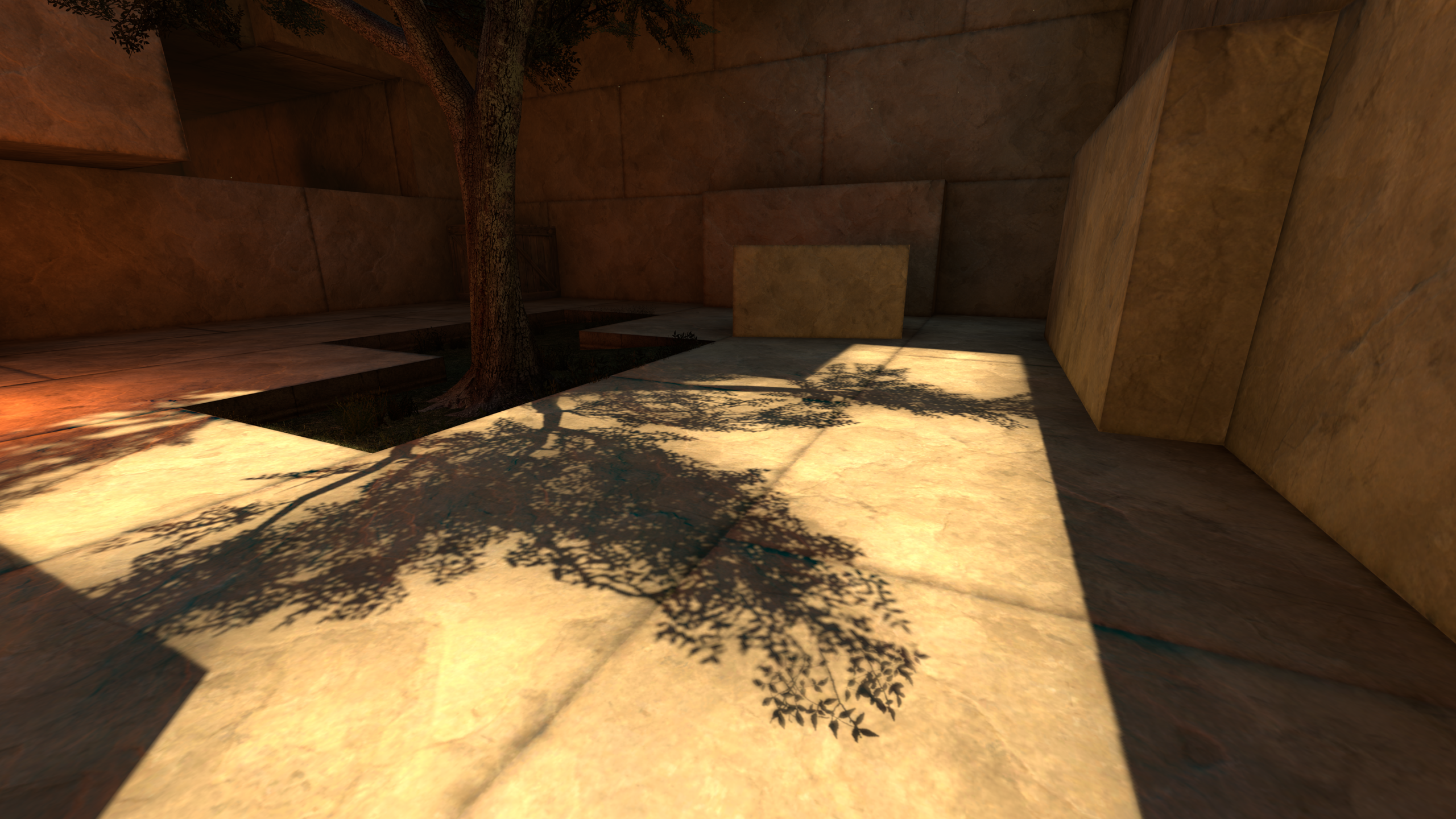
Some CS:GO maps use cascaded shadow maps (CSM) to create more detailed shadows.
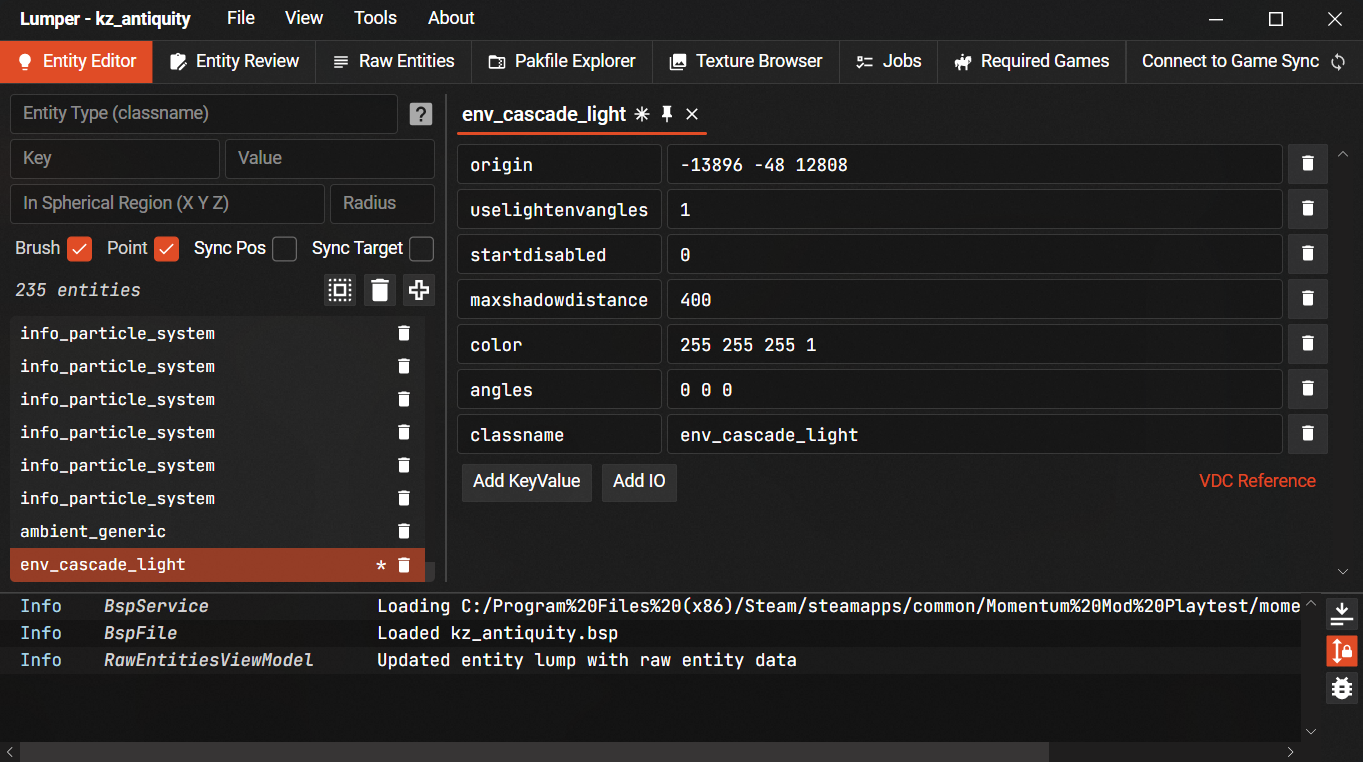
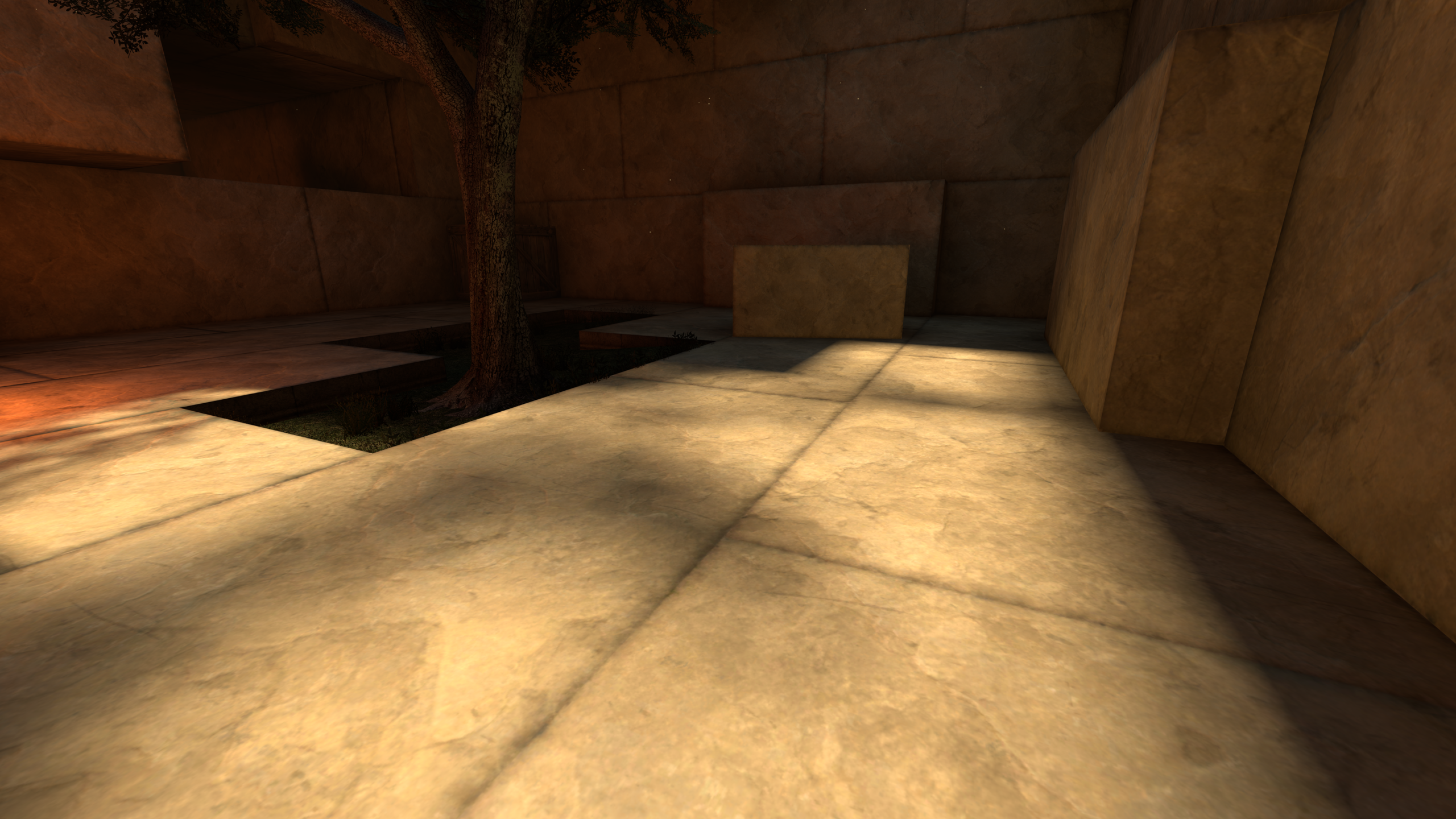
The only way to know if the map needs it, is to compare shadows between CS:GO and Momentum Mod
Export to Lumper #
The changes made with Entity Tools will be reverted once you exit the map.
Lumper can be used to apply these changes permanently.
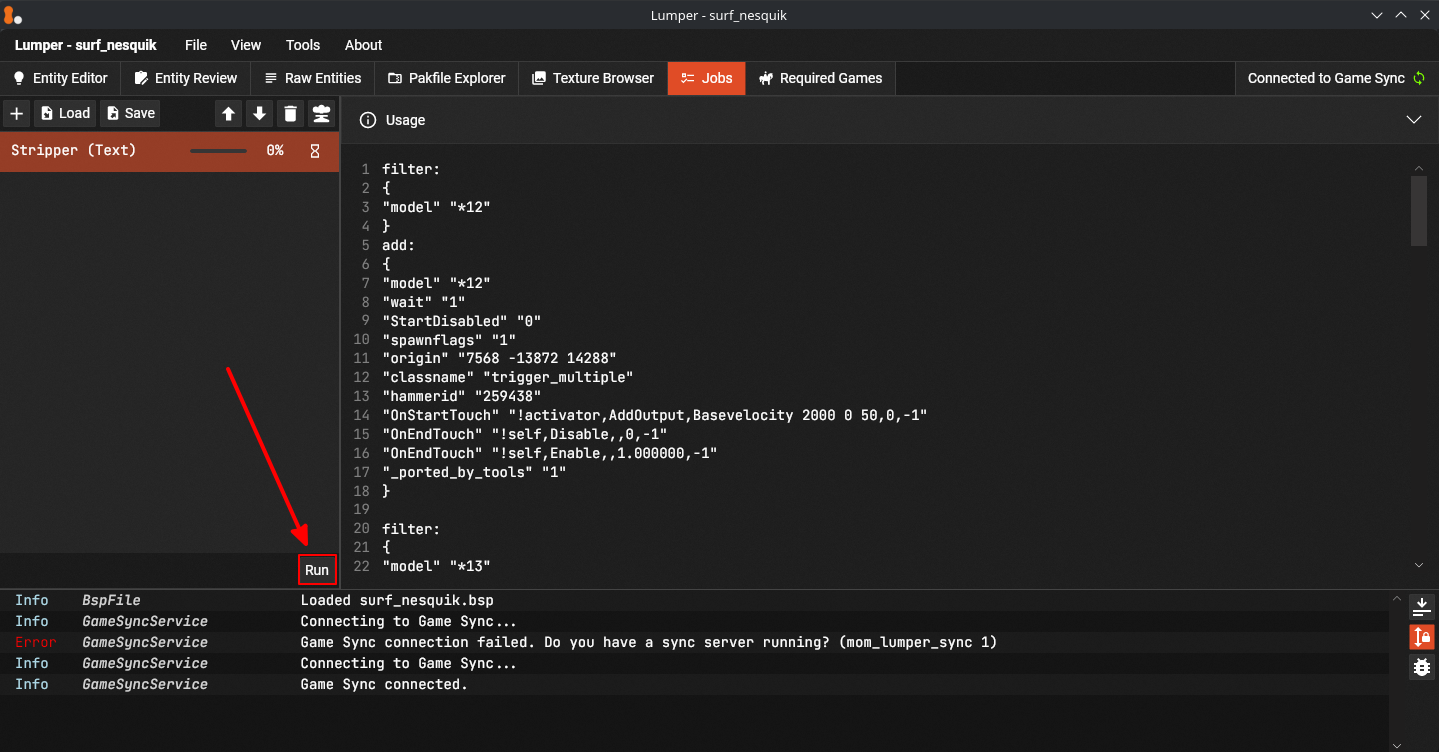
- While still in Entity Tools click Export To Lumper
- This will automatically create a config with all changes you made and switch your tab to Jobs
- Run the Job
- Click File → Save to save your changes
In order to check if everything was applied correctly you will have to reload the map in the game.
Alternatively you can Export To File and then apply it in Lumper using the Stripper(File) job.
These files are saved to /momentum/maps/entitytools_stripper folder.
Modifications in Lumper #
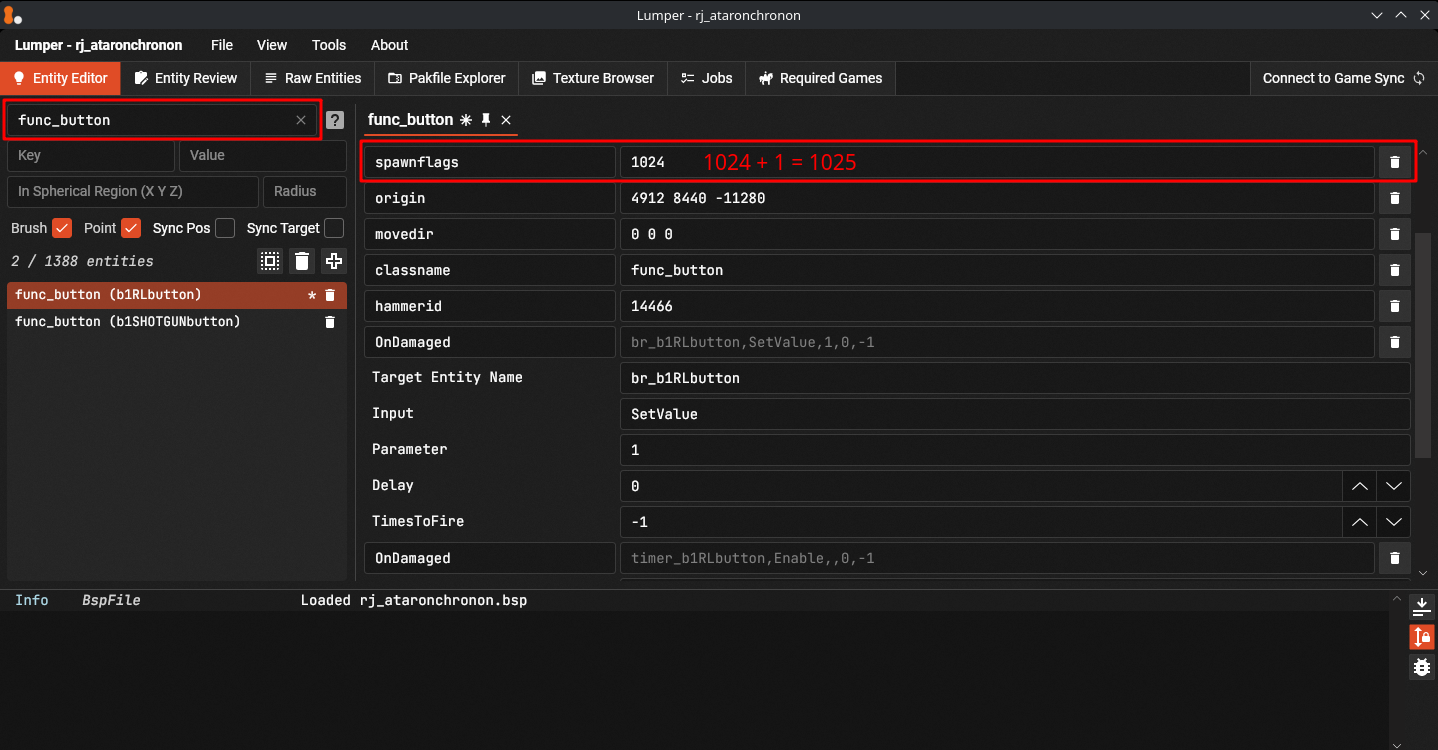
func_button #
Some buttons reset their position much slower in Momentum Mod.
Add 1 to spawnflags in order to disable their movement
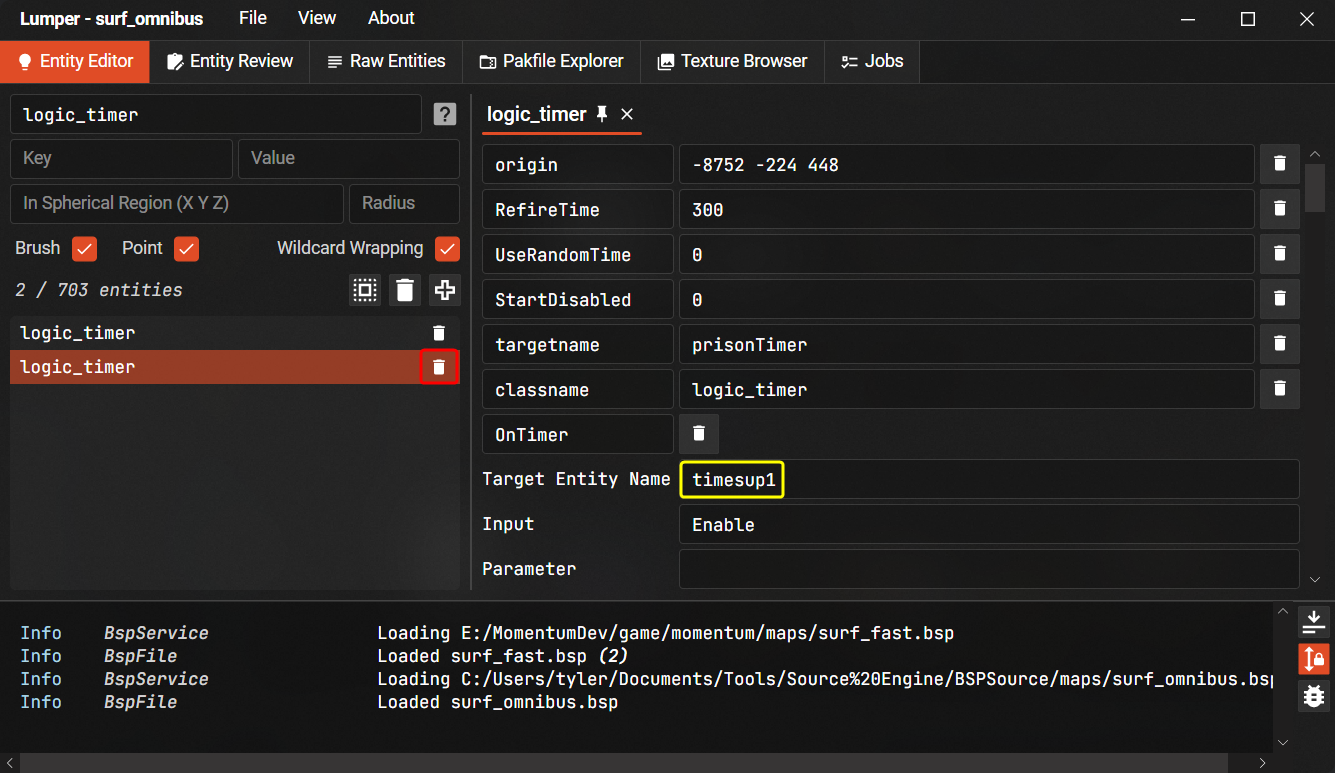
logic_timer #
This entity is generally used for displaying time on Rocket Jump / Sticky Jump / KZ maps.
Old surf maps however, often use it to teleport players to jail after a set amount of time.
If used for jail, this entity needs to be removed.
Rare Issues #
Issues listed in this section are very rare and apply mostly to old maps.
Vast majority of maps will not require any of these fixes.
Stripper Configs #
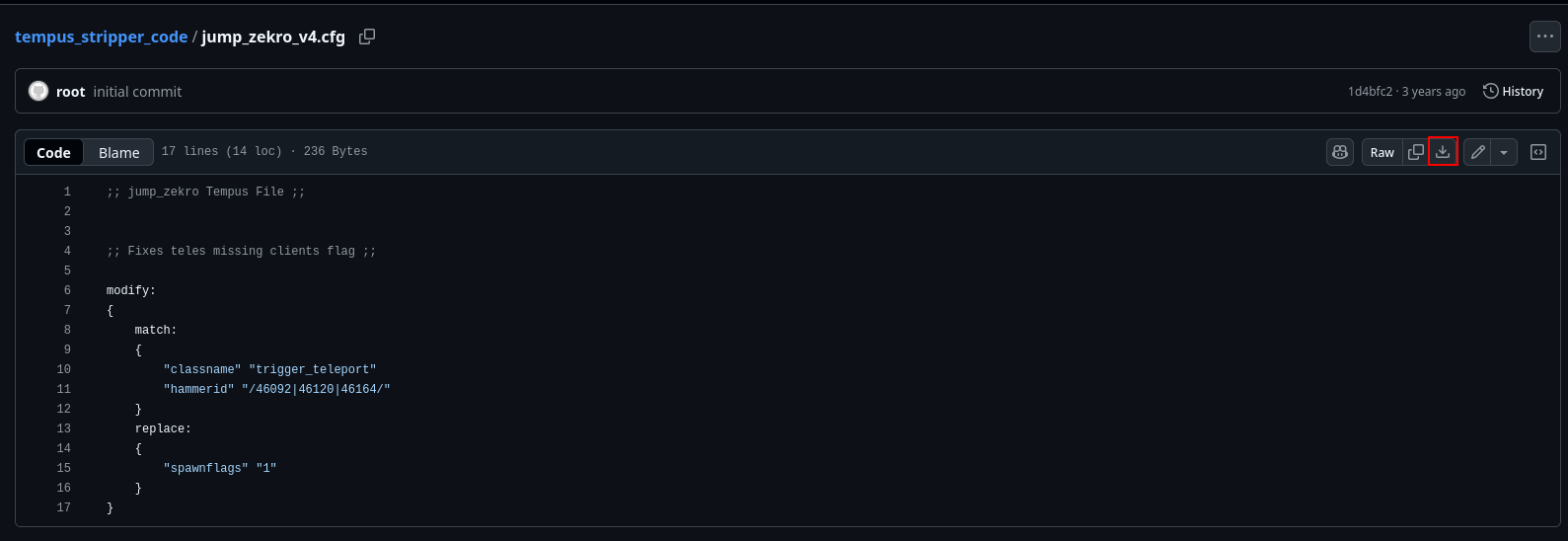
Community servers sometimes apply server side fixes to maps ( mainly applicable to Rocket Jump / Sticky Jump )
You can apply them permanently to the .bsp with Lumper
While these are sometimes useful, a lot of them are not applicable to Momentum Mod.
Certain configs fix mapper mistakes, such as broken/missing teleports.
- These are important and should probably be applied unless fixed by other means
Other configs add visual clarity, such as adding laser beams to visualize zones better.
- These should not be applied
Read through the config relevant for you map carefully before deciding to apply it.
Apply your best judgement regarding what configs are relevant to Momentum Mod.
If you’re not sure if you should use them, please ask in #map-porting channel on our Discord.
- Download the .cfg file
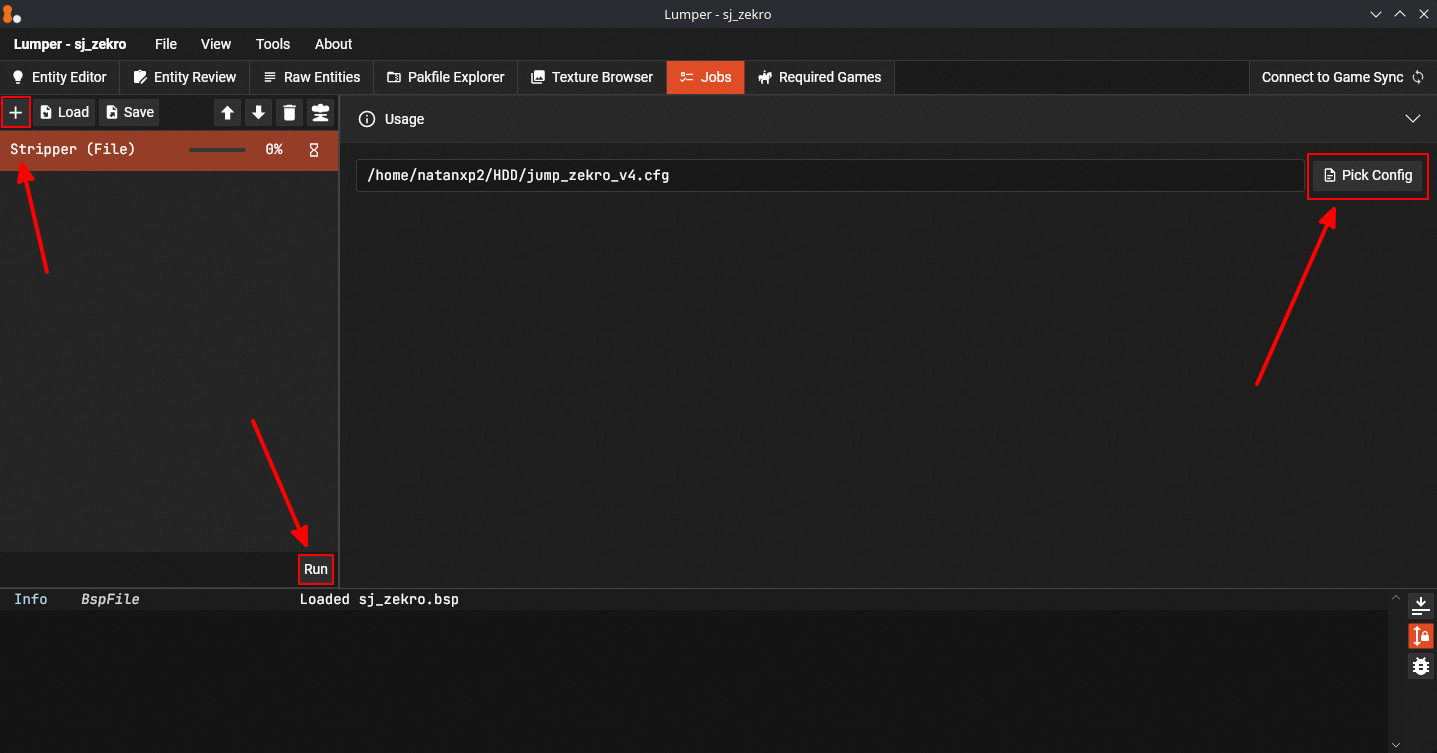
- Go to Jobs tab in Lumper
- Add the Stripper (File) job
- Provide the path to your downloaded .cfg and run the job
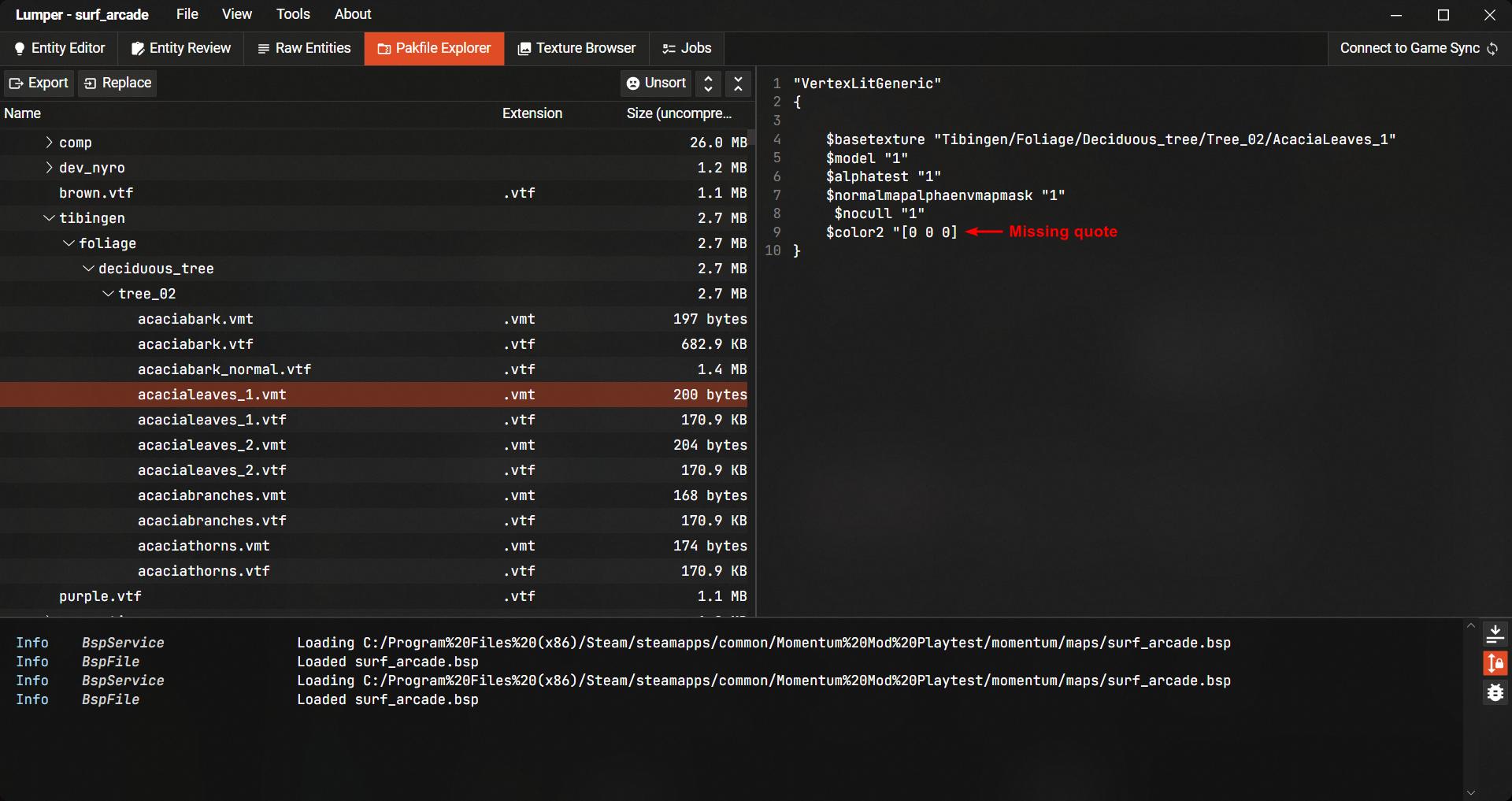
Invalid VMT Files #
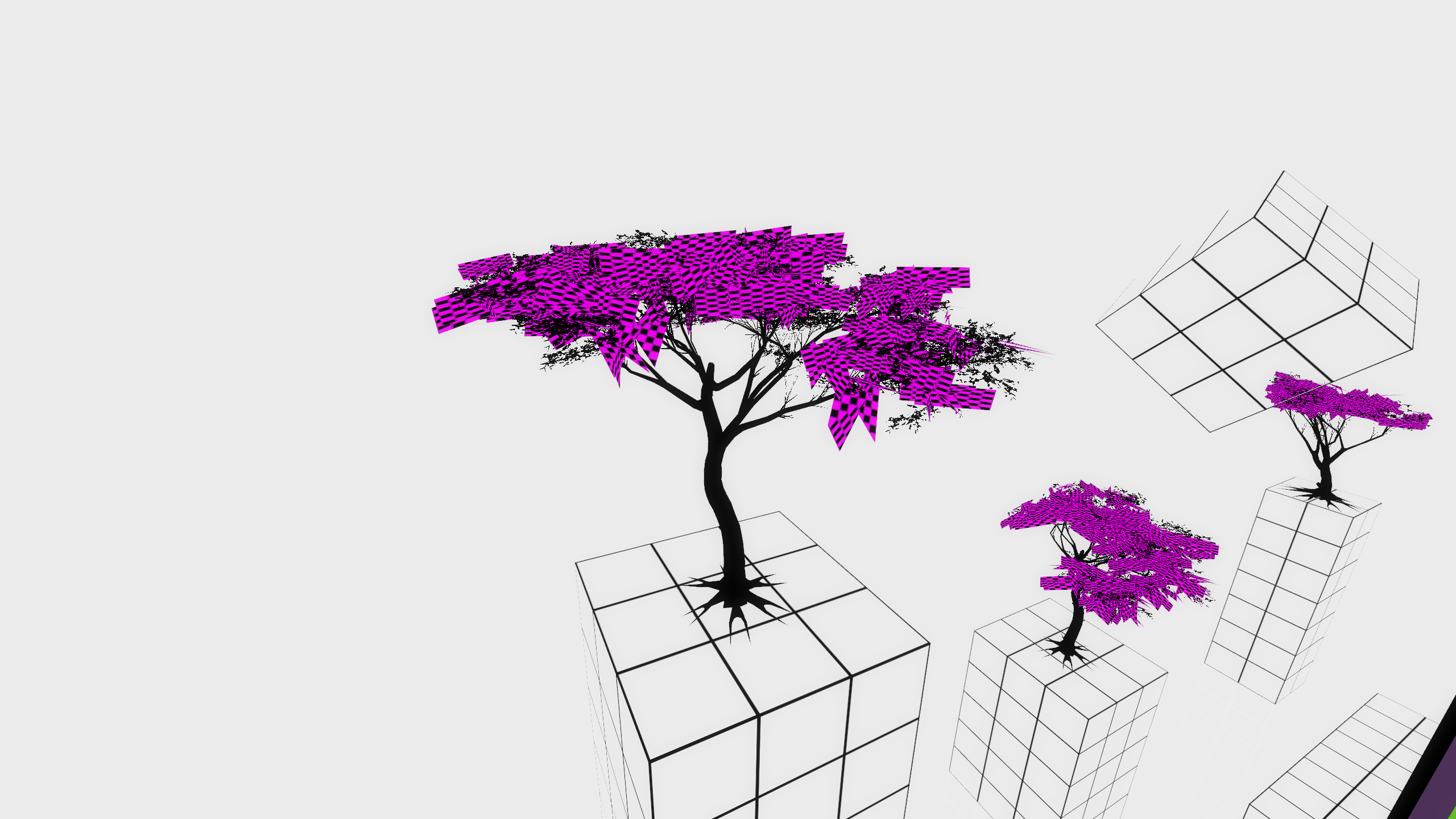
Momentum Mod uses stricter parsing rules than other source games.
Fix .vmt of broken textures using the Pakfile Explorer in Lumper.
Missing Skyboxes #
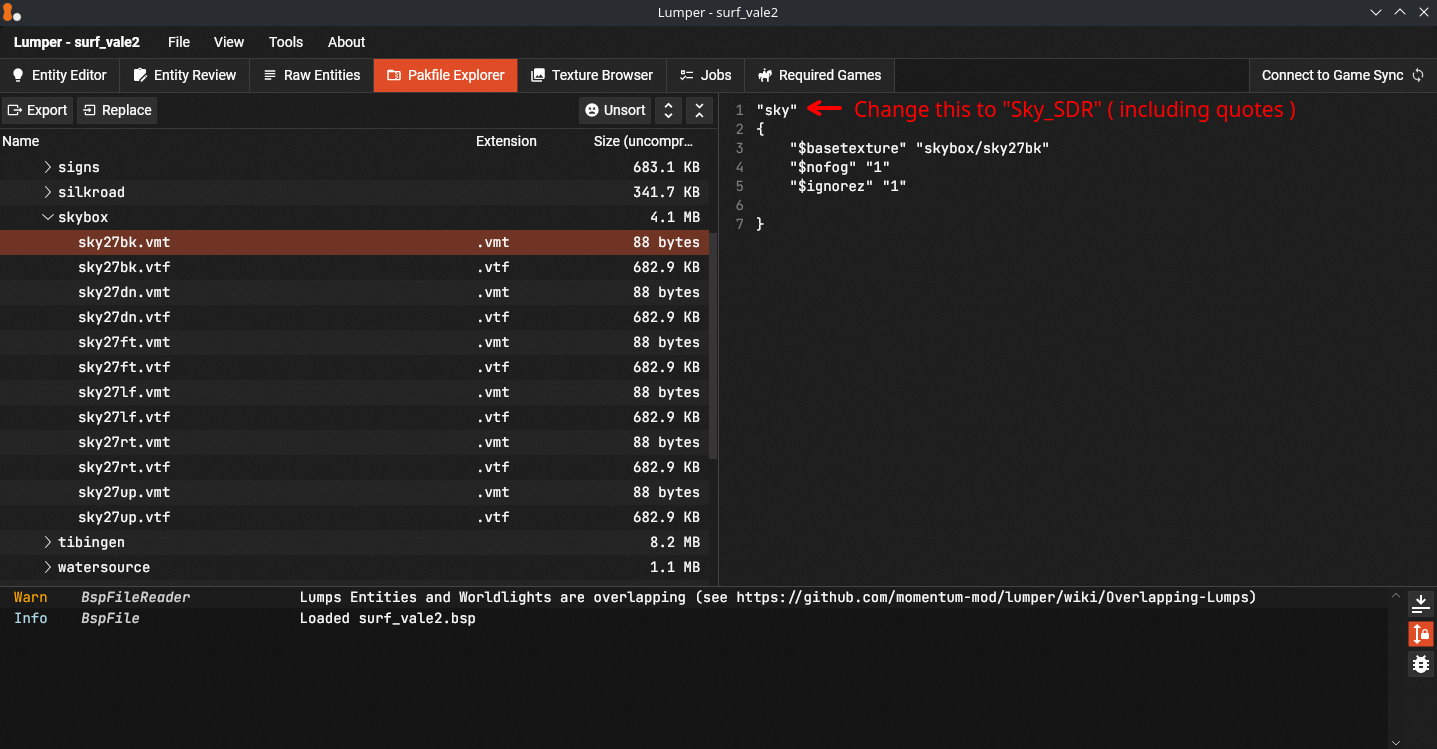
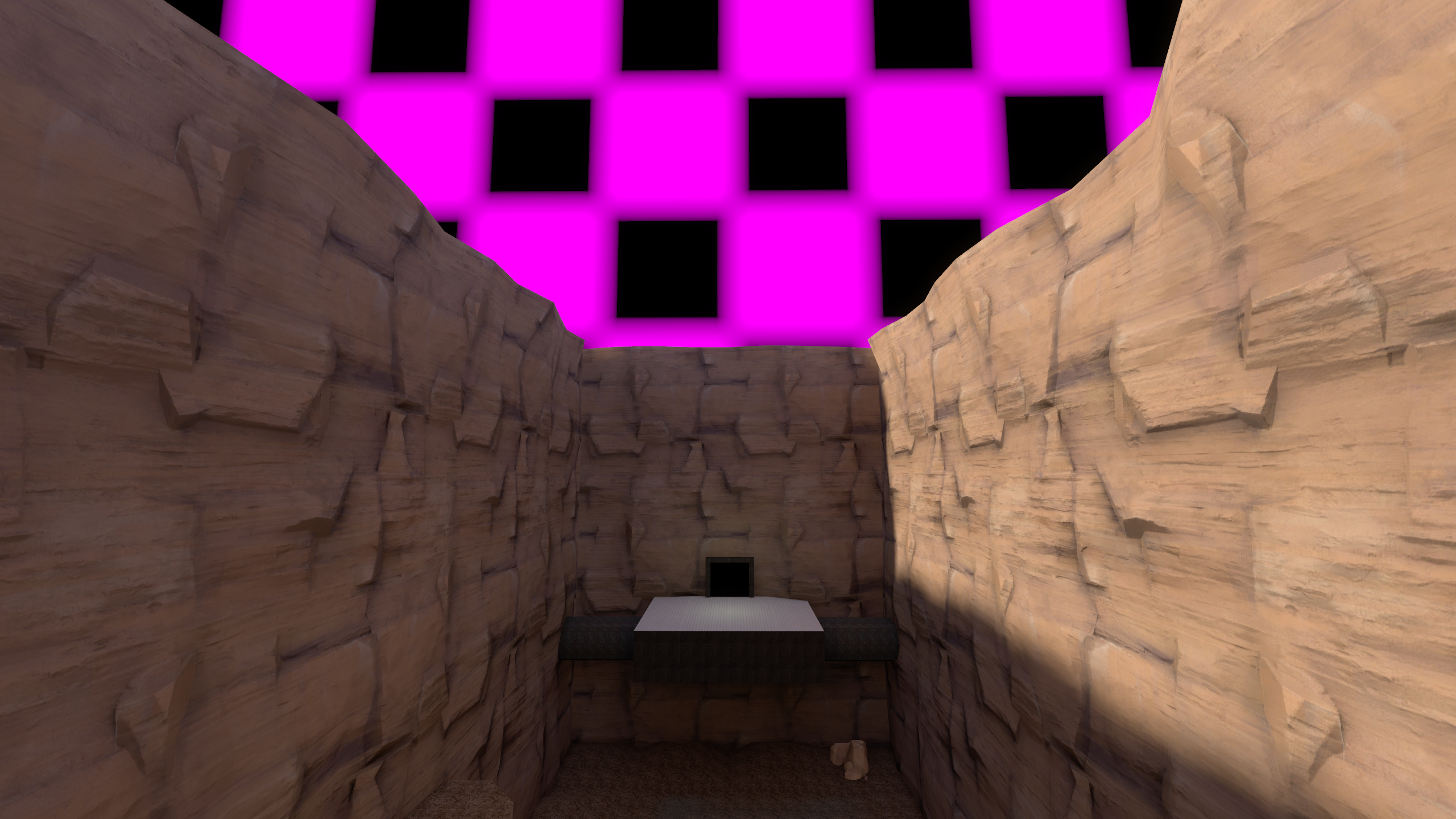
Skyboxes will sometimes fail to load in maps compiled with HDR.
- Go to Pakfile Explorer tab
- Find the .vmts of the skybox
- It will be in /materials/skybox
- There will be 6 pairs of .vmt and .vtf, one for each side
- Open every .vmt and change the first line to “Sky_SDR” (including quotes)
Corrupt HDR Cubemaps #
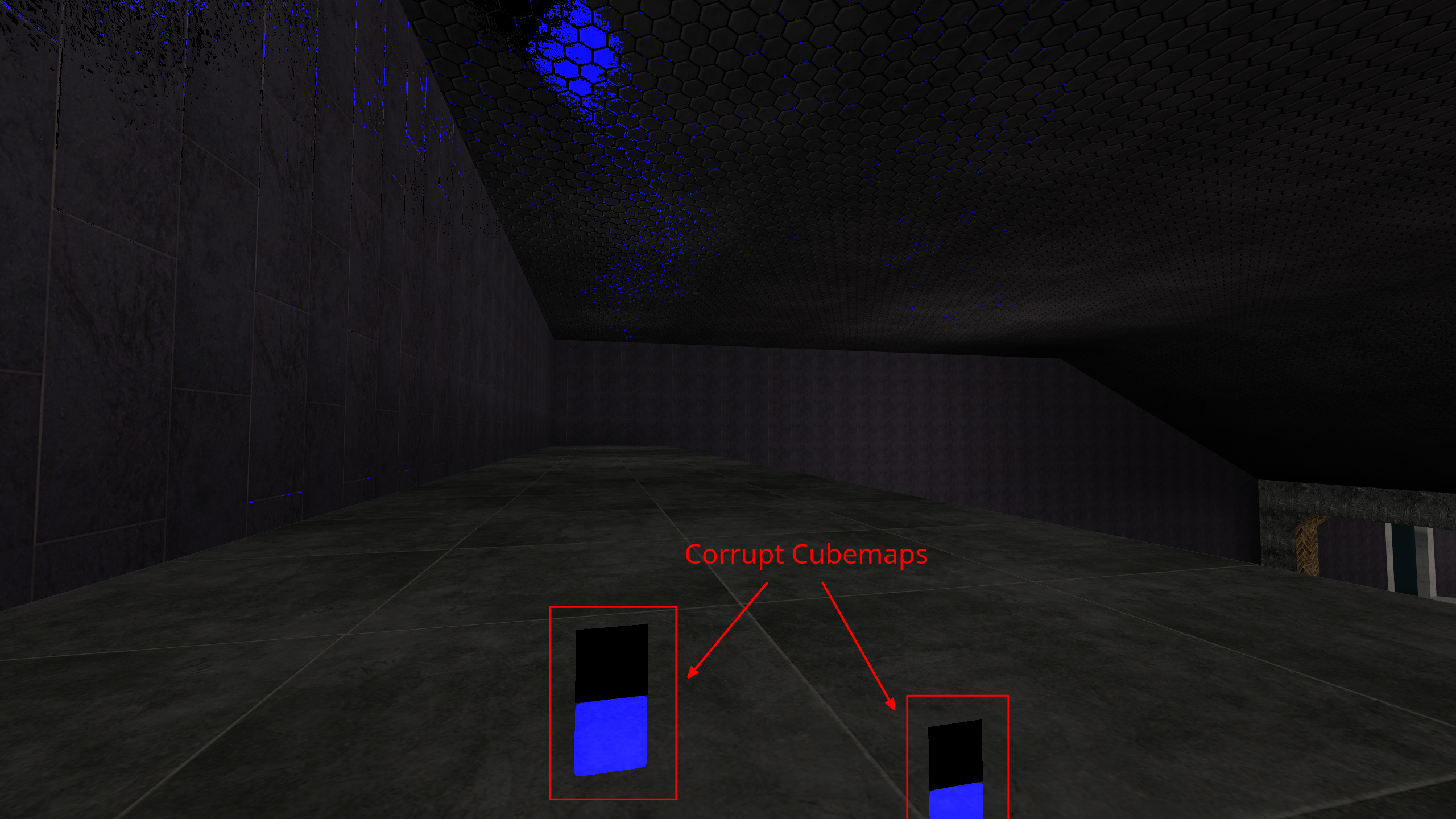
Some maps from CS:S have corrupted reflections in Momentum Mod.
In cases we’ve seen they’ve been flat blue/black textures.
- Download the CS:GO version of the map
- Check if it exists on gamebanana or surfheaven
- Open it in lumper and go to the Pakfile Explorer tab
- Export the entire /materials/maps folder
- Close Lumper
- You may now delete the cs:go port you downloaded
- Open the map you were porting in Lumper
- In Pakfile Explorer delete the entire /materials/maps folder
- Right click on /materials and create a new /maps folder
- Right click on /maps → Import Directory
- Import the maps folder you extracted
If the CS:GO port doesn’t exist you can manually delete → import → rename every single .vtf file in /materials/maps with this file
You need to make sure all filenames match exactly after importing and renaming
The best way is to copy the .bsp for backup and open 2 Lumper windows side by side so that you can copy the filenames from one to the other
TODO: Rewrite if replacing textures with vtfs is added to lumper
Collectibles #
When porting maps with collectibles make sure that they function correctly according to the mapper’s original design.
Verify that the state of collectibles is properly reset when restarting or switching tracks.
Some maps won’t require any fixes.
Maps that do need to be fixed can be ported in 2 ways:
- Convert the collectible system triggers to Momentum’s collectible system entities
- Zone the map using unordered, required checkpoints
Converting collectibles to Momentum Mod’s system can be complicated.
There is no one-way-fits-all solution.
If needed, please ask for help in #map-porting channel on our Discord!
Moving Brushes #
Some maps have moving brushes which have cycles that are too fast to be hit consistently which effectively introduces RNG to competitive runs.
They should be frozen or deleted only if there is community consensus around it.
If you’re not sure about this, please ask in #map-porting channel on our Discord!