When the game boots, it scans the momentum/custom/ folder for VPK files and subfolders.
For steam users, this will be
Steam/steamapps/common/Momentum Mod/momentum/custom/
under the steam install path.
Each VPK and subfolder is added as a “search custom”, meaning that the files inside them will override the default game’s files.
Using this is recommended over modifying the game’s files, as the custom folder will persist when installing an update or using Steam’s “verify integrity of game files” feature.
File Structure Examples #
Here are some examples of correct file structure:
momentum/custom/some_mod.vpkmomentum/custom/another_mod.vpkmomentum/custom/my_custom_stuff/momentum/custom/my_custom_stuff/models/custom_model.mdlmomentum/custom/my_custom_stuff/materials/custom_material.vmtmomentum/custom/my_custom_stuff/materials/vgui/custom_ui_thing.res
In these examples, some_mod.vpk, another_mod.vpk, and my_custom_stuff will be added as search customs.
Some examples of incorrect file structures are:
momentum/custom/models/custom_model.mdlmomentum/custom/materials/custom_material.vmt
In these examples, models and materials are search customs, meaning that custom_model.mdl and custom_material.vmt exist at the root of the game’s virtual filesystem instead of in their appropriate folders.
Example - Getting the TF2 Rocket Launcher working in RJ #
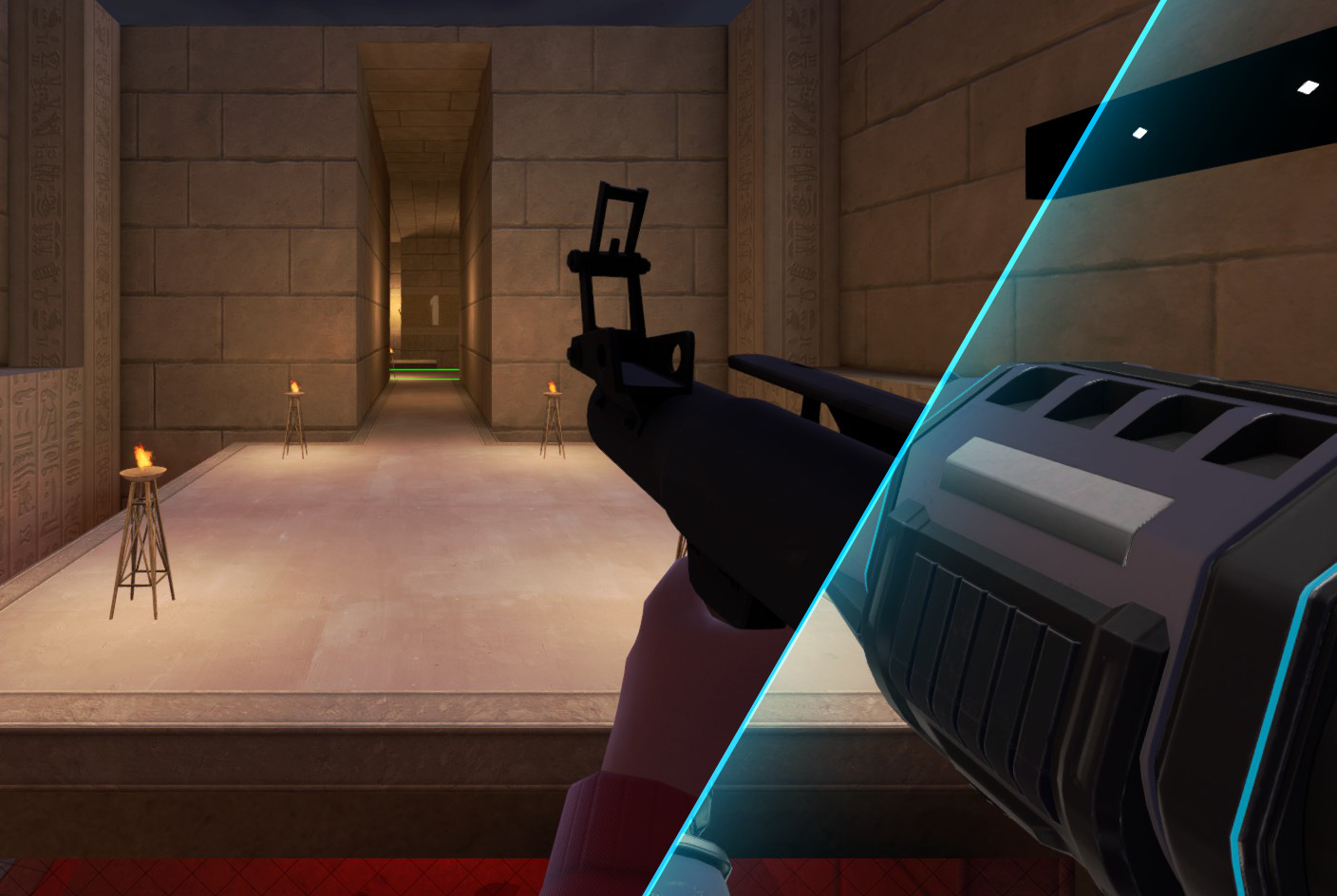
Inside momentum/custom/overrides/scripts/, you’ll find some preconfigured weapon script overrides available.
For these overrides to take effect they need to be renamed to match the file they are overriding in momentum/scripts/.
In this example, we’ll be looking over weapon_momentum_rocketlauncher_tf2.txt, in order override the Momentum Rocket Launcher model, sounds and particle effects to be the ones from TF2.
Each weapon has different needs and behaviors, this guide won’t explain every keyvalue present in each weapon script, but this example should hopefully be enough to give you a good idea on what the weapon scripts expect you to define.
How the script works #
The weapon script defines several aspects of the weapon itself, but for the purposes of this guide, we’ll only focus on how to make visible changes to stuff like weapon model, particles and sounds. For a more in-depth explanation of this system, you can read the VDC wiki entry.
If you’re planning to use assets from other games, be sure your game is being mounted by Momentum! By default, we’ll try to mount HL2, TF2, CS:S, CS:GO and Portal 2 (in that order) if they are installed through Steam.
Changing weapon models #
If you’ve been following along, you might already have your preconfigured weapon_momentum_rocketlauncher_tf2.txt script open.
In it, you’ll see a keyvalue block called ModelData. This defines the set of keys that tell the game which models are associated with it.
view: defines the model to use for the viewmodel (or what you see in your first person perspective).view_side: tells the game which model is used for the “side” firing angle.world: is the model to use when found outside of your first person perspective. Like dropped in the world or being held by others or you in third person.rocket: holds the path to the model to use as the Rocket Launcher’s projectile. Despite the name, this can be any model! With great power…
You are free to change these paths to the ones you prefer, but by default they have been set up to use the Original for the ‘center’ firing angle and stock for the ‘side’ and ‘hybrid’ angle.
Changing weapon sounds #
Moving down, you’ll spot SoundData, here you can find all the soundscript strings associated with the weapon.
Note, you do not define the paths to the sound file here! That task is handled by the soundscripts. Instead, you write down the soundscript entry you want to use here.
Weapon_RL.Single: is the sound to use for when you fire the Rocket Launcher.Weapon_RL.Explosion: determines the sound of the rocket’s explosion.Rocket.Trail: you can write an entry here to use for the rocket’s traveling sound. TF2 has none.Rocket.Fizzle(_ALT): the sound to play whenever a rocket gets removed without exploding.
Changing weapon particle effects #
Next, you should see the ParticleData block, this piece of the weapon script references the particle systems to use whenever the weapon calls for one.
ExplosionEffect: the effect used whenever a rocket explodes on a surface. For visibility reasons, many jumpers use the “sapper destroyed” effect instead of the stock TF2 explosion effect.ExplosionMidAirEffect: contains the effect to play whenever a rocket blows up mid-travel.ExplosionWaterEffect: this effect will be used when a rocket explodes inside a volume of water.RocketTrail: defines the trailing particle effect for the rocket.
Weapon scripts can be reloaded from within the game by using the console command weapon_reload_scripts.
Performance #
Mounting a subfolder is less efficient than a VPK, since the engine has to make a call to the operating system to search the folder each time it needs to open a file. For optimal load times use VPKs, since they can be searched by the engine much more efficiently.